
Updated . By Skai P, Boldnsmart.
Short answer: “Flagged” or “Needs review” means SalePilot could not confirm a price on your store, so check those SKUs in Shopify admin yourself. Look for it in 6 places: the sale’s status badge, the Dashboard’s “Needs attention” banner, a rule’s “Couldn’t apply” state, the revert report’s Flagged status, the “Products needing manual review” table and the warning for prices discounted twice. “Skipped (diverged)” is not a flag: it means a price you edited was kept.
SalePilot, from the Shopify App Store, tries to confirm every price it changes went back to normal without you checking each product by hand. Most of the time it can confirm this itself. Occasionally it can't — and when that happens, it tells you clearly with a "Flagged" or "Needs review" state, in one of several places in the app. This guide covers every place that state shows up, and exactly what to do about it.
Why this matters
SalePilot is explicit about one thing: when it flags something, it means Shopify's actual state on that product is unconfirmed. SalePilot itself cannot tell you for certain what price is showing on your store for that SKU right now — you need to check it yourself, directly in Shopify admin. This guide walks through every place a flag can appear so you never miss one.
Where "Flagged" or "Needs review" can appear
1. The sale event's own status badge
On a sale event's "Name & dates" card (in the "This sale" group) and on the Sale Events list, a sale event can carry the status "Needs review — see Revert report below" (shown as just "Needs review" on the list page). This is the sale-level signal that something inside this sale needs a look.
2. The dashboard's "Needs attention" banner
If any sale events need review, the SalePilot dashboard (app home) shows a critical banner: "{N} sale event(s) need review — check the revert report on {it/each} for details." This is your first warning if you haven't opened the sale event yet.
3. A discount rule's status: "Couldn't apply — see the result above"
In the "What's discounted" group, the discount rules table has a State column. One of its possible values is "Couldn't apply — see the result above." This means that specific rule failed to apply when the sale went live.
What to do: Look at the row's Actions column — if the server refused an action on that rule (for example Revert or Delete), the reason prints inline under the row. Read that reason first; it tells you why the rule couldn't apply before you decide what to do next.
4. The Revert report's overall status banner
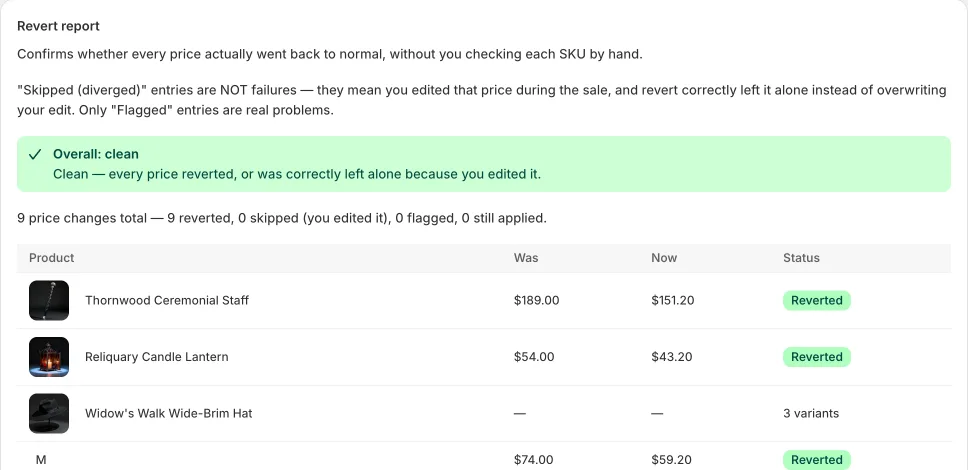
In the "What's live now" group, the Revert report carries one of three overall banners: "Clean," "Pending," or "Flagged — some prices need you to check the store by hand." Only "Flagged" means a real problem — "Pending" just means the revert hasn't finished yet, and prices you edited mid-sale showing as "Skipped (diverged)" are correct behavior, not a failure.
5. The "Products needing manual review" banner
When the Revert report's overall status is Flagged, a second, more specific critical banner appears underneath it: "Products needing manual review." Its text reads: "Shopify's actual state on these SKUs is unconfirmed — check them in Shopify admin directly." Below this banner sits a table containing just the flagged items — a filtered view so you don't have to hunt through every row.
6. The duplicate-discount warning banner
If any variant was discounted twice — applied without a revert happening in between — the Revert report shows a separate critical banner: "Some prices were discounted twice — check these before trusting the restore price." This explains that reverting restores the earliest recorded (real pre-sale) price, and tells you to double check those specific SKUs in Shopify admin afterwards.
What to do when you see a flagged item
Follow these steps every time you encounter any of the flags above.
Step 1: Read the flag's own text first
Every flag in SalePilot names its own cause and its own recommended action in the banner text itself — don't skip past it. "Products needing manual review" and the duplicate-discount banner both explicitly tell you the next step: check the SKU in Shopify admin.
Step 2: Open the flagged product in Shopify admin directly
Go to Shopify admin's own Products section (outside SalePilot) and open the exact product or variant named in the flagged row. Check its current price there. This is the only way to see Shopify's real, current state for that SKU — SalePilot cannot confirm it for you, which is exactly why it flagged the item.
Step 3: Compare against the Revert report's Was/Now columns
Back in SalePilot's Revert report table (columns: Product, Was, Now, Status), compare what Shopify admin actually shows against the "Was" (pre-sale) and "Now" (expected current) prices listed for that row. If they don't match what you expect, fix the price by hand directly in Shopify admin — SalePilot will not overwrite a price you set yourself.
Step 4: Don't confuse "Skipped (diverged)" with a real flag
One reminder built into the app itself: "Skipped (diverged)" entries are NOT failures — they mean you edited that price during the sale, and revert correctly left it alone instead of overwriting your edit. Only entries actually marked "Flagged" are real problems that need the steps above.