
Updated . By Skai P, Boldnsmart.
Sometimes a sale needs to stop right now — before its scheduled end time, and no matter what state it's currently in. SalePilot, from the Shopify App Store, gives every sale event a "Panic revert now" button for exactly this. This guide explains what it does, when it's safe to use, and what it will never touch.
What Panic revert does
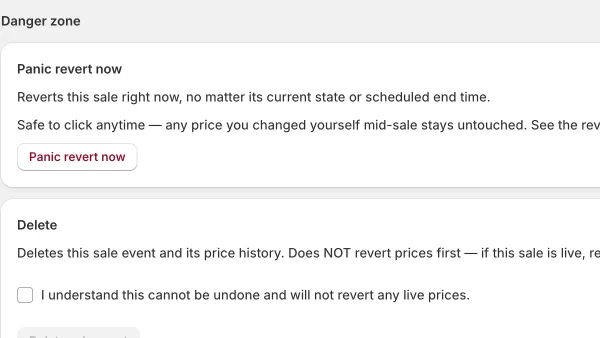
Panic revert lives in the Danger zone group at the bottom of a sale event's detail page, under the heading Panic revert now. In plain terms: it reverts this sale right now, no matter its current state or scheduled end time. It doesn't matter whether the sale is still scheduled, currently live, or already partway through reverting — clicking this button tells SalePilot to restore this sale's prices immediately.
When it's safe to use
SalePilot states this plainly in the app: it's safe to click anytime. Any price you changed yourself, by hand, in the middle of the sale, stays untouched. SalePilot never overwrites a price you edited mid-sale — it only reverts the prices it changed itself when the sale applied.
So Panic revert is the right tool whenever you want a sale to end sooner than planned — a pricing mistake, a change of business decision, a scheduling error, or simply wanting the sale to stop today instead of on its original end date.
Step 1: Open the sale event you want to stop
Go to the Sale Events list and click into the sale event that's currently running (or scheduled) that you want to end immediately.
Step 2: Scroll to the Danger zone group
On the sale event's detail page, scroll down past "This sale," "What's discounted," "Go live," "Storefront," and "What's live now" until you reach the Danger zone heading. This is the last group on the page.
Step 3: Click "Panic revert now"
Inside the Danger zone group, find the "Panic revert now" heading. Read the two lines under it: "Reverts this sale right now, no matter its current state or scheduled end time." and "Safe to click anytime — any price you changed yourself mid-sale stays untouched. See the revert report above for exactly what happened." Then click the button, labeled Panic revert now and shown in red (a critical action button) to make clear this is an immediate, irreversible-in-effect action.
Step 4: Check the revert report above
After clicking, go back up to the What's live now group and open the Revert report. This is where SalePilot confirms exactly what happened to each price — which ones reverted cleanly, which were correctly left alone because you edited them mid-sale, and whether anything needs your attention.
What Panic revert never does
It's worth repeating because it's the single most important guarantee here: Panic revert never touches a price you changed by hand while the sale was running. If you went into a product and adjusted its price yourself mid-sale, SalePilot recognizes that as a divergence and leaves it exactly as you set it — it does not overwrite your manual edit to force the "original" price back. The revert report labels these correctly-skipped prices as "Skipped (diverged)," and that status is not a failure — it's SalePilot working as intended.
If you want full detail on what each status in the revert report means, see the companion guide on flagged items and manual review.