
Updated . By Skai P, Boldnsmart.
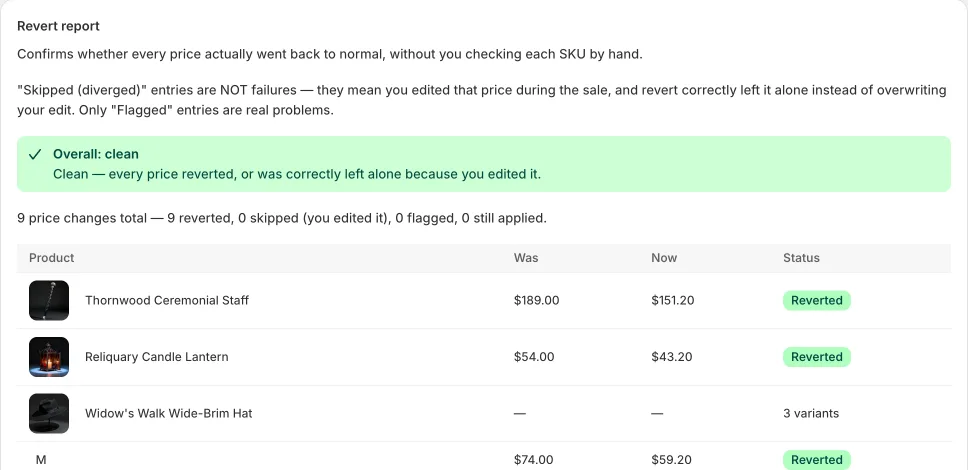
Short answer: At the scheduled end time the sale reverts itself, usually within about a minute, whether or not you are logged in. The Go live card moves from “Live” to “Reverting” to “Reverted” (or “Needs review” if a price could not be confirmed). Then the revert report shows one of 3 statuses (Clean, Flagged or Pending) and a Was, Now and Status line for every variant. A price you edited by hand during the sale is kept and shown as “Skipped (diverged)”.
One of the core promises of SalePilot (from the Shopify App Store, once installed) is that you don't have to be at your computer when a sale ends. This guide covers exactly what happens automatically at your sale's scheduled end time, and how to confirm it went the way you expect.
The automatic revert, in plain terms
A scheduled sale reverts itself at its scheduled end time — whether or not you are logged into Shopify or SalePilot at that moment. You don't need to click anything, and you don't need to be watching. This is what SalePilot's "Scheduled" and "Live" states tell you in advance, and it's what actually happens when the clock runs out.
What you'll see before the end time arrives
While the sale is live, the "Go live" card's heading reads "Live," with this text: "This sale is live — its discounted prices are on your store right now. It will revert itself at {time}, whether or not you are logged in. To end it sooner, use Panic revert (below)."
This is your confirmation, ahead of time, that nothing further is required from you — the end time you set when scheduling the sale is what triggers the revert.
What happens at the scheduled end time
- At the scheduled end time, the sale begins reverting automatically — usually within about a minute of that time.
- While this is happening, the "Go live" card's heading changes to "Reverting," with the text: "This sale is reverting right now — prices are being restored automatically."
- Once the revert finishes, the heading changes again to "Reverted." This card points you to the "What's live now" section below for the full record, or offers to apply the sale again by hand if you want to.
If something needs your attention instead
Occasionally the automatic revert can't fully confirm everything went back cleanly. In that case, the "Go live" card's heading changes to "Needs review" instead of "Reverted," with a critical banner: "This sale needs review." It points you to "What's live now" and asks you to check the revert report there before applying or reverting the sale again.
After the end time: read the revert report
Once your sale has finished reverting (or flagged itself for review), go to the "What's live now" section on the same detail page and open the "Revert report." This is where you confirm exactly what came back to normal and what — if anything — needs a manual check.
- Scroll to "What's live now" on the sale event's detail page.
- Check the overall status banner: Clean (everything reverted, or was correctly left alone because you'd edited it), Flagged (something needs a manual check), or Pending (the revert hasn't finished yet).
- Read the summary line: "{N} price change(s) total — {N} reverted, {N} skipped (you edited it), {N} flagged, {N} still applied."
- If the status is Flagged, look for the "Products needing manual review" banner and its filtered table, then check those specific SKUs in Shopify admin directly.
Remember: a "Skipped (diverged)" entry is not a failure — it means you changed that price yourself during the sale, and the automatic revert correctly left your edit alone rather than overwriting it. Only "Flagged" entries are real problems.
Ending a sale early instead of waiting
If you don't want to wait for the scheduled end time, you can end the sale manually using "Panic revert now" in the "Danger zone" section of the sale event's detail page. This reverts the sale immediately, no matter its current state or scheduled end time, and any price you changed yourself mid-sale stays untouched. Check the revert report afterward the same way described above.