
Updated . By Skai P, Boldnsmart.
Short answer: The revert report, under “What’s live now” on each sale event, shows one of 3 statuses: Clean (every price back, or left alone because you edited it), Flagged (check these prices by hand) or Pending (the revert hasn’t finished). One line totals the 4 counts: reverted, skipped (you edited it), flagged and still applied. Each product row has Was, Now and Status. Only “Flagged” is a real problem; “Skipped (diverged)” means your own edit was kept.
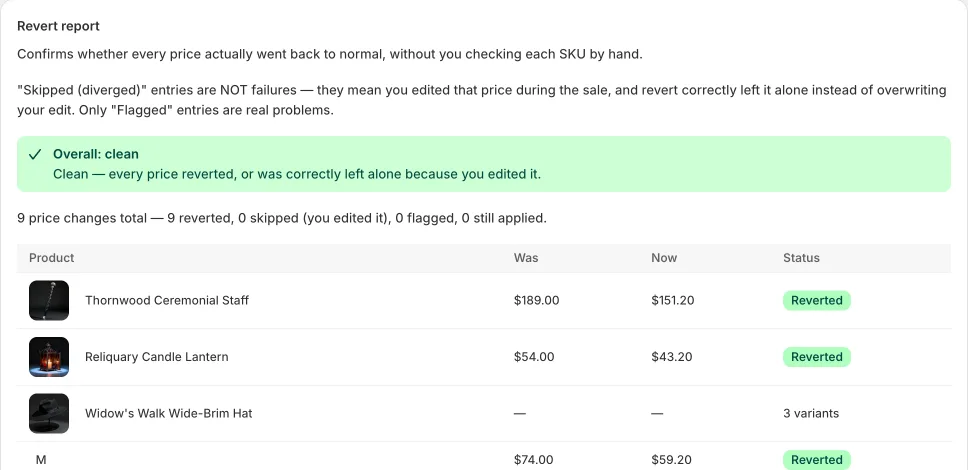
Every sale event in SalePilot (from the Shopify App Store, once installed) has a "What's live now" section on its detail page, holding the "Revert report." This is the record of what the last apply or revert actually did to your store's prices — and it's the single place to check that everything went back to normal. This guide covers every part of that report.
Where to find it
- Open the sale event's detail page.
- Scroll down past "Go live" to the "What's live now" heading. The "Revert report" is inside it.
What the report is for
The report explains its own purpose right at the top: "Confirms whether every price actually went back to normal, without you checking each SKU by hand."
The one distinction that matters most: "skipped" is not "flagged"
Read this carefully before anything else in the report: "Skipped (diverged)" entries are NOT failures. They mean you edited that price yourself during the sale, and the revert correctly left it alone instead of overwriting your edit. Only "Flagged" entries are real problems that need your attention.
The three overall-status banners
At the top of the report, one of three banners always shows the sale's overall revert status:
- Clean — "Clean — every price reverted, or was correctly left alone because you edited it."
- Flagged — "Flagged — some prices need you to check the store by hand."
- Pending — "Pending — the revert hasn't happened yet (or isn't finished)."
The summary line
Right under the banner, a single line totals everything up: "{N} price change(s) total — {N} reverted, {N} skipped (you edited it), {N} flagged, {N} still applied."
If prices are still applied
If any prices are still applied (not yet reverted), a note explains that these are the real prices on the store right now from the last apply — and that editing the discount rules above won't change them until the sale is applied again.
The duplicate-discount warning
If any variant was discounted twice — applied a second time without a revert in between — a critical banner appears: "Some prices were discounted twice — check these before trusting the restore price." It explains that reverting restores the earliest recorded (real pre-sale) price, and asks you to double-check those SKUs in Shopify admin afterwards.
The flagged-items banner
If the overall status is Flagged, a second critical banner appears: "Products needing manual review" — "Shopify's actual state on these SKUs is unconfirmed — check them in Shopify admin directly." This is followed by a table containing just the flagged items, so you don't have to scan the full list.
The main table: Product, Was, Now, Status
Below all the banners and notes, the full record sits in a table with four columns:
- Product
- Was (the price before)
- Now (the price after)
- Status
Every price change gets one row, tagged with one of five status badges:
- Pending — the revert hasn't reached this price yet.
- Applied — the discounted price is currently live.
- Reverted — the price successfully went back to normal.
- Skipped (diverged) — you edited this price during the sale, so revert correctly left it alone. Not a problem.
- Flagged — a real issue; check this SKU in Shopify admin directly.
If nothing has been applied yet
If the sale hasn't been applied at all, the report simply says: "Nothing to report yet — this sale hasn't been applied."