
Updated . By Skai P, Boldnsmart.
Short answer: Saving a sale doesn’t start it. Press “Schedule this sale” to have it apply and revert itself, usually within about a minute of each scheduled time, or “Start sale now” to apply it right away. You need at least 1 discount rule first, and “See the price changes first” shows each variant’s old and new price before anything goes live. The Go live card then shows one of 6 states: Draft, Scheduled, Live, Reverting, Reverted or Needs review.
Once you've set up your sale event in SalePilot (from the Shopify App Store, once installed), the "Go live" section on the sale event's detail page is where you actually put the discounted prices on your store — or check on a sale that's already running. This guide walks through every state you'll see there and what each button does.
Where to find the "Go live" card
On the sale event's detail page, scroll past "This sale" and "What's discounted." The "Go live" card is next, before "Storefront," "What's live now" and "Danger zone." Its heading and the text inside it change depending on where your sale currently stands.
- Open your sale event from the Sale Events list.
- Scroll down to the "Go live" card.
The six things the "Go live" card can say
SalePilot shows one of six headings here, matching your sale's current status.
1. Draft — "Schedule this sale"
If you haven't scheduled the sale yet, you'll see a warning banner: "This sale is not scheduled yet" / "This sale won't start until you schedule it — saving alone doesn't start anything."
The button reads "Schedule this sale" — or "Schedule and start now" if the start time you picked has already passed.
If you haven't added any discount rules yet, this button is disabled, with the reason shown inline: "Add at least one discount rule first — there's nothing for the sale to change yet."
2. Scheduled — "Scheduled"
Once scheduled, the card explains that the sale will apply itself — and later revert itself — automatically, whether or not you're logged in, usually within about a minute of the scheduled time.
The button here is "Put back to draft," with a caveat next to it: "Putting it back to draft stops it starting — it does not undo a sale that's already started. Use Panic revert for that."
3. Live — "Live"
Once the sale has started, the heading reads "Live" and the text confirms: "This sale is live — its discounted prices are on your store right now. It will revert itself at {time}, whether or not you are logged in. To end it sooner, use Panic revert (below)."
4. Reverting — "Reverting"
While the automatic revert is in progress, the card says: "This sale is reverting right now — prices are being restored automatically."
5. Reverted — "Reverted"
Once the revert is done, the "Reverted" card points you down to "What's live now" for the full record, or offers to apply the sale again by hand if you want to.
6. Flagged — "Needs review"
If something needs a manual check, the heading changes to "Needs review" and a critical banner reads: "This sale needs review." It points you to "What's live now" below and asks you to check that report before applying or reverting again.
What's always shown below the status card
Under the status card you'll also find:
- A caption under "Start sale now": "Skip the start time and put sale prices live now." (shown while the sale has rules that haven't been applied yet).
- If this sale's discounted prices are already on the store and haven't been reverted yet, an info banner appears: "Already applied — revert before applying again" — it explains that applying a second time would discount the already-discounted price and lose track of the original price.
- Two secondary buttons, one under the other:
- "Start sale now" — skips the start time and applies the sale's discount rules to your store right now.
- "See the price changes first" (secondary) — this is the Preview action; it shows you what would change without actually changing anything.
A note sits under the buttons: "Preview only shows percentage-off changes ahead of time — rules that apply as automatic discounts at checkout aren't included here."
Using "Start sale now"
- Make sure you're not already applied (check for the "Already applied — revert before applying again" banner first).
- Click "Start sale now."
- SalePilot applies every pending discount rule to your store immediately.
Using "See the price changes first" (Preview)
Click "See the price changes first" to check what would change before committing to anything.
- Click "See the price changes first."
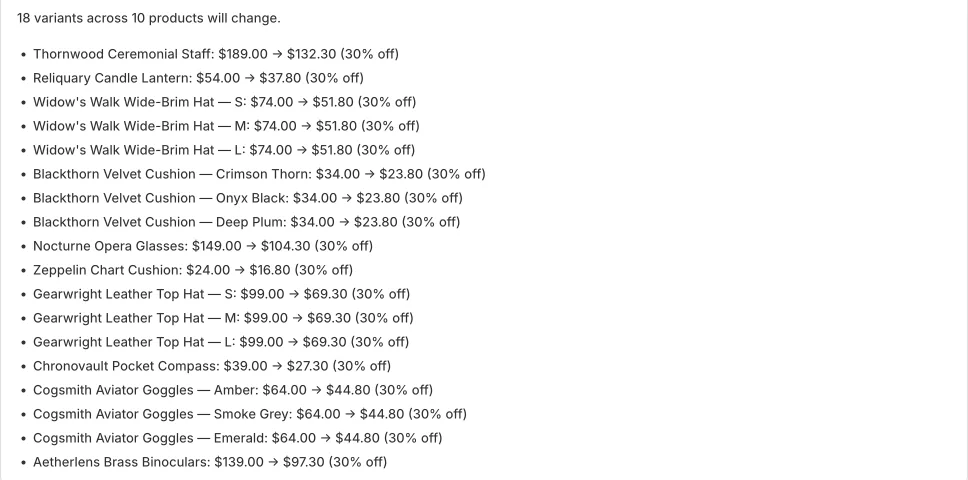
- SalePilot shows a summary line: "{N} variant(s) across {N} product(s) will change."
- Below that, one line per variant: "Product — Variant: {was price} → {now price} ({X}% OFF)."
- If more than 500 variants would be affected, a note warns that applying may take up to a minute.
Remember: this preview only covers percentage-OFF rules. Quantity-break rules apply as native Shopify discounts at checkout, so there's nothing to preview for them.
Guardrail: "Already applied — revert before applying again"
If this sale's prices are already live on the store, SalePilot shows this banner before you can apply again. It's there to stop you from accidentally discounting an already-discounted price and losing the record of the original price. Revert first (with a rule's "Revert" button in "Added discounts", or "Panic revert now" in the Danger zone), then apply again if you need to.